

A tour of the admin console
After logging in, you move between the areas below using the menu on the left to manage content, devices, and users. The actual menus may vary slightly depending on your contract and permissions.
Dashboard (대시보드)
Section titled “Dashboard (대시보드)”This is the first screen you see after logging in. At the top, Needs attention lists devices with problems by name (below); under it, one row holds five summary cards — Devices online · Schedule delivered · Updates today · Storage · Media (with the number of screen groups and regular users — admin accounts are not counted). Then come the Updates trend · the Device mix table · user activity · recent schedule deliveries · the top 10 media by plays · and past schedules (Download Excel).
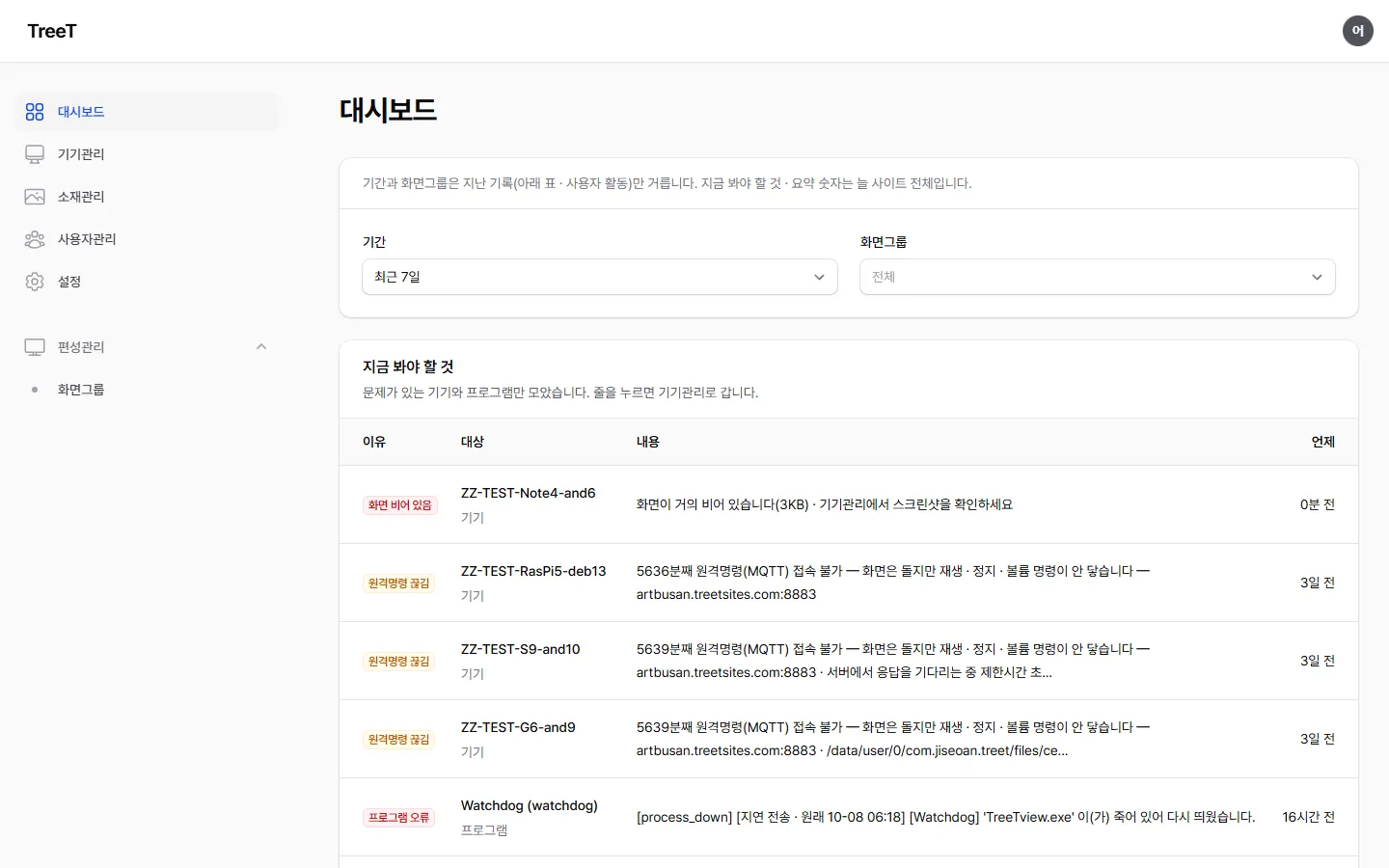
Devices with problems appear here by name
Section titled “Devices with problems appear here by name”The dashboard is not just a screen of numbers. The Needs attention table at the top lists whatever needs fixing as reason · target (device · program · media · sync pool) · detail. Clicking a line opens that device’s page (programs open the program list, media opens Content management, sync pools open the sync pool overview). When there is no problem, the table shows All clear. It gathers only what is a problem right now, so a line disappears as soon as it is fixed.
Past events (지난 일) — right below Needs attention, recent events (crashes · restart loops · self-recovery, etc.) are kept separately. Restart loops stay for 1 hour and everything else for 24 hours, and the right-hand column tells you whether it is 지금은 정상 (fine now) or 아직 확인 필요 (still needs checking). So when you come in in the morning, this is where you see “what happened overnight” — events that have already cleared are gone from Needs attention. If nothing like that happened in the last 24 hours, it shows 지난 일 없음 (no past events).
| Reason | What it means | What to do |
|---|---|---|
| Disconnected | Nothing has been heard from the device for more than 5 minutes. It stays listed overnight and over the weekend (for devices that reported at least once in the last 7 days) | Check the power and the network |
| Not responding | The device is alive but has not answered the CMS check for more than 3 minutes. The screen plays, but remote commands don’t reach it | See When the CMS check stalls below. Clicking the line opens that device’s page with the local log filled in from around the time it stalled |
| Remote commands down | The screen is running and the device answers the CMS check, but its remote-command (MQTT) connection has been down for more than 5 minutes. Commands such as play · stop · volume do not reach the device. The line shows the address the device tried and its last error | See When remote commands are down below. The line disappears by itself once the device reconnects |
| Blank screen | The screen image the device sent is almost black. Playback may have stopped, there may be nothing to play, or the display may be off | Click that device’s screenshot and look for yourself. The table only flags a suspicion, so checking with your own eyes is faster |
| Restart loop | The device came back up more than three times in one hour. Each restart interrupts the screen | If the same device also has a Crashed line, the reason given there is the cause |
| Crashed | A program on the device exited abnormally, and the reason is shown with it | Pass the reason on to your support contact exactly as shown. It is a technical sentence, but it is a clue that points straight at the cause |
| Repeated self-recovery | The device revived itself more than four times in 24 hours. It came back each time, but the recovery is hiding a fault | Check the device history and local log on the device page. Follow When the screen freezes and revives itself, and if it keeps happening tell your support contact how many times |
| Program error | Errors that the helper programs running alongside the device (for playback sync, watchdog, and relay) reported themselves. For example, a program died, sync drifted, or an update failed | Each line shows which device, what kind, how many minutes ago, and what happened. If the same device has other lines too, look at those first |
| Program silent | Where Program error means something happened, this one means nothing is being said. Helper programs send their status every minute, so more than 30 minutes of silence means the program is not late but stopped | 🔴 This is the quietest kind of failure. If the watchdog stops, nobody will restart the player if it dies. The screen looks fine for now — check that machine directly or tell your support contact |
| Throttling · Under-voltage · Temperature | Comes from the hardware status the PC’s Watchdog sends every minute. Throttling and under-voltage show as critical while active, temperature at 80°C or above is critical, and 75°C or above for a full 5 minutes is a warning. Conditions that have already cleared are not shown, and only values received in the last 10 minutes count — a machine that stopped reporting shows as Program silent instead | For overheating check ventilation, dust and the cooler; for under-voltage check the power adapter first — both cause playback to stutter. PCs without a temperature sensor (e.g. Windows desktops) show temperature as empty, which alone raises no alarm |
| CMS was unreachable | A record that the CMS did not respond for more than 3 minutes and then came back (left by Watchdog — installation manual 7-b) | The start and end times are included. If it shows often, check the power and memory of the PC running the CMS |
| Background video failing | Devices whose layout background video failed to recover 3 or more times in 24 hours. The line includes the file name — “The layout background video failed to recover N times in 24 hours — (file)“ | Re-upload that background file, or change the background in the layout editor. Backgrounds do not appear in the content list, Devices or the schedule screen, so this is the only place it shows. Clicking the line opens that device’s page |
| Media file missing | A content item used in a schedule has no file on the server. Devices can’t download it, so that part stops. The line names the screen groups using it | Re-upload the file or remove it from the schedule. It is the same as the File missing mark in Content management — clicking the line opens Content management |
| Video too large for device | A scheduled video exceeds the size (width×height) that device can open (for now only Android devices report their limit). That video’s area stays black | ① Re-encode the video within the device’s limit — both the long and the short side must fit (compare portrait videos rotated) ② or remove it from that screen group’s schedule, or use different media per device to give only that device another video. The “(this device can open N decoders at once)” at the end is for reference — it is what the device declares and may differ from how many it can really play at once. See a device’s limit in the 영상 디코더 (video decoder) line of that device’s details in Devices |
| Version mismatch | A program version installed on the device is lower than the minimum this CMS accepts. The line reads “program version — this CMS accepts N or later” | It clears once that device receives a new version — see Versions that don’t match this CMS |
| System settings off | Settings that don’t suit a kiosk, such as a screensaver being on or power saving still active. Watchdog measures and reports these once at startup and every 6 hours after that | See “What Watchdog fixes by itself and what it can’t” below |
| Settings mismatch | Values that should move together have drifted apart. For example, the server address points to the new CMS but only the address for receiving commands is still the old value | In Devices → that device → Remote settings (원격설정), make the remaining values point to the same place |
| Sync pool schedule mismatch | The schedule structure (number and length of items) of screen groups bound to one sync pool differs from the reference group. It only warns and does not block | Match the number and length of items to the reference group (see the sync pool notes under Devices). Clicking the line opens the Sync pool overview (싱크풀 현황) (Admin and above) |
What Watchdog fixes by itself and what it can’t
Section titled “What Watchdog fixes by itself and what it can’t”Watchdog first reports drifted settings to the CMS, and then puts back on the spot whatever it can fix. It works in this order because if it fixed things first and reported afterwards, the record would always say “normal” and what had drifted would never be recorded.
| Name shown on the line | Watchdog | What a person needs to do |
|---|---|---|
power.monitor-timeout-… · power.standby-timeout-… · disk.timeout-… · power.scheme · screensaver.… · desktop.background · toast.… · notificationcenter.disabled(notifications — toast.policy) | ✅ Puts it back by itself | Nothing. It drops off the list at the next check (6 hours later) |
hiberboot.disabled · sleepoption.hidden · network.newnetworks · edgeswipe.disabled(touch-edge swipe) | ❌ Only reports — these are machine-wide settings, so it does not change them | On that PC, run 키오스크셋팅\Settings_All.cmd once |
Items grouped as 값없음:… | ❌ Only reports — a value that doesn’t exist at all means the kiosk setup has never been run | Same as above — one run of Settings_All.cmd fills them all in |
🔵 On a CMS server (a PC with no player), the Watchdog checks only sleep and hibernate standby — kiosk items such as the screensaver and notifications do not fit a server, so they do not appear.
Errors the player reports on its own — when sync is off
Section titled “Errors the player reports on its own — when sync is off”Unlike the list above, these are cases where the player itself reports “I can’t keep up right now.” They appear under the dashboard’s device-reported errors.
🔵 None of these three mean “the screen has frozen” — the screen keeps playing. It’s just that multiple screens drift apart from each other, which is hard to notice when you’re only watching one. That’s why the device is made to speak up on its own.
| When this appears | What it means | What to do |
|---|---|---|
| 싱크 보정을 멈췄습니다 — 위치를 옮겨도 어긋남이 안 줄어듭니다 (Sync correction has stopped — moving the position doesn’t reduce the drift) | A device where the act of moving the playback position to correct it creates delay of its own. Since continuing would only make it worse, it stops correcting on its own | 🔴 If an Android device is playing natively, change its playback path — Devices → that device → TreeTview tab → [Edit] on the 화면설정 (Display settings) group → set 영상 재생 방식 (video playback mode) to 웹뷰 (the on-screen label; “WebView”). It improves on its own once the device receives the setting — no reinstall or reboot needed. If the line ends with ”…이미 웹뷰로 재생하고 있어 바꿀 재생 경로가 없습니다” (already playing through WebView — no playback path left to change) or “이 기기에는 바꿀 재생 경로가 없습니다” (no playback path to change on this device — PC), there is nothing to switch — pass that line on to your contact as it is |
| 싱크 보정을 쉬고 있습니다 — 기준을 믿을 수 없습니다 (Sync correction is paused — the reference can’t be trusted) | The reference signal isn’t arriving, or is too old. With nothing to align to, correction pauses | Check the sync connection, port, and sync pool (the 싱크설정 (Sync settings) tab). Also check whether the sync server is actually running |
| 싱크 보정을 쉬고 있습니다 — 영상 길이를 모릅니다 (Sync correction is paused — the video length is unknown) | The video that should be playing may not have loaded (its length can’t be read) | Check whether that device’s schedule and content were delivered properly |
| 배속 보정이 안 먹습니다 (Playback-speed correction isn’t taking effect) | That device can’t receive playback-speed commands. Even with sync running, the position may not line up | Try the same fix as the first row first (switch to 웹뷰 (the on-screen label; “WebView”)) |
| 재생 위치를 옮겼습니다 … 배속 보정을 놓습니다 (Seeked, and gave up on speed correction for this device) | Seeking continues, but the device gave up only on the fine adjustment done with speed. 🔵 If you see “재생 위치를 옮겼습니다” with nothing after it, that is normal (right after a start-up or an update) | Same fix as the row above (switch to 웹뷰 (the on-screen label; “WebView”)) |
| [싱크 포트] 원격 설정의 싱크 포트(…)와 싱크풀 포트(…)가 다릅니다 (the sync port in remote settings and the sync pool port differ) | Two places (remote settings and the sync pool) set different ports for reaching the sync server. The device uses the remote-settings value and does not restart | Devices → that device → make the sync-address port in remote settings and the device’s sync pool port the same. If the line reads ”… 로 바꾸고 재시작했는데 다시 … 입니다” (changed the port and restarted, but it is back again), it restarted twice for the same port and the value came back, so it stops restarting for 10 minutes — again, make the two values match, and if it keeps repeating pass that line on to your contact as it is (from viewer 2026.9.358) |
| [재시작 멈춤] 같은 이유(…)로 10분 안에 이미 여러 번 재시작했는데 그대로입니다 (restarted several times in 10 minutes for the same reason, but it is still the same) | After receiving remote settings the device restarted three times in 10 minutes for the same reason and the value came back each time. So that it does not restart forever, the device stopped by itself — the screen keeps playing with the current values. The part in brackets is the reason (원격설정: | Two or more places set that value and keep undoing each other. Devices → that device → make the values in remote settings and the sync pool (for a sync port) the same, then restart the device once. It is reported only once per reason. If it comes back after the values match, pass that line on to your contact as it is (from viewer 2026.9.362) |
| [깨진 파일] 재생이 code 4 로 실패해 받아 둔 파일을 지우고 다시 받습니다(이번 기동에 한 번) (playback failed with code 4, so the downloaded file is deleted and downloaded again — once per start) | A video file the device had downloaded was broken (the download was cut off, or the file changed on the server after it was downloaded) and could not be opened. The device deleted that file and downloaded it again by itself — it usually plays normally a few dozen seconds later | Nothing to do. If it shows up again for the same video (it re-downloads only once per start), the problem is the video format, not the file — upload that video again in the library in a supported format (H.264 MP4) (from viewer 2026.9.369 · desktop) |
| [싱크] 서버 전환 신호가 안 옵니다 — … 을 기다리다 자기 목록대로 넘깁니다(신호가 오면 다시 따릅니다) (the sync server’s switch signal is not coming — the device moves on through its own playlist and will follow again when the signal returns) | A device in sync waited for the sync server’s “move on” signal, but it did not arrive within 10 seconds after the next switch time the server had announced (or 10 seconds after the current media ended, if it never got a signal). So that the screen does not freeze, the device moves on through its own playlist — it may be out of sync with the other devices. Schedules received in the meantime are applied at that point | Check that the device’s sync server is running, and that Devices → that device → remote settings → sync address and port point to this site’s sync server (a device moved from another site may still have the old address). When the server’s signal comes back the device follows it again by itself — this is reported once each time the signal is lost (from viewer 2026.9.370) 🔵 If the line ends with 싱크 서버 H:P 에 붙지 못했습니다(이유). (could not connect to sync server H:P (reason)), the problem is the connection, not the signal — check that a sync server actually exists at that address (an Android device has no sync server at 127.0.0.1). 아직 안 붙었습니다. (not connected yet) means it is still trying to connect (from viewer 2026.9.383). |
| [싱크] 싱크서버가 이 기기를 받지 않습니다(라이선스 없음 · 라이선스 몫 초과) — 서버 신호를 기다리지 않고 혼자 재생합니다 (the sync server will not take this device for licence reasons — it plays on its own without waiting for the server) | The sync server refused this device because of the sync licence: the licence has expired and its 30-day grace has passed, or there are more devices than that sync server’s share. The screen does not stop — each device plays on its own (not in sync with the others) | Check the expiry date under Settings → Licence, and raise that server’s share in Devices → SyncServer tab. Once there is a share the device reconnects and follows sync again — this is reported once, not on every refusal (from the next viewer release) |
| [신원] 같은 PC 의 Watchdog 정본 신원과 다릅니다 — 뷰어 … · Watchdog … (differs from the Watchdog identity on the same PC) | The viewer and the Watchdog on this PC see different device identities. The usual cause is a PC cloned from a disk image (it carried over the original’s Watchdog identity record). The viewer keeps playing under its own identity and does not create a new row in the device list. | 🔴 Do not restart it. If this PC was cloned from another PC’s disk image, a restart will not fix it — instead, the original PC’s registration may move to this PC. Turn this PC off and contact support (TreeT on this PC must be removed and installed again). If it is not a cloned PC, note the device identity on the device page’s TreeTview tab and the identity on the Watchdog tab, and contact support. |
| 이 PC 의 Watchdog 설정(…)에 CMS 주소가 없거나 출하 기본값(127.0.0.1)입니다 — Watchdog 은 어느 CMS 에도 체크인하지 않습니다 (the Watchdog settings on this PC have no CMS address or still the factory default (127.0.0.1) — Watchdog checks in to no CMS) | The viewer is connected to this CMS, but the Watchdog settings on the same PC have an empty CMS address or the default from the first install. So Watchdog (updates · monitoring · remote power-on) reports to no CMS. One line is reported each time the viewer starts | On that PC, run the Watchdog installer again as administrator with the address and ports (/CMSURL=<CMS address> /HTTPPORT=<port> /HTTPSPORT=<port>). Reinstalling keeps the other settings. When Watchdog shows up on the device page a few minutes later, you are done (from viewer 2026.9.376) |
| Watchdog 설정(…)의 CMS 주소 … 로 닿지 않아 뷰어가 알던 주소 … 로 붙었습니다 — 이번 기동만입니다 (the CMS address in the Watchdog settings could not be reached, so the viewer connected with the address it knew — for this start only) | The CMS address and port in the Watchdog settings on the same PC do not reach the CMS, so the viewer temporarily connected with the address it used before. The screen and reports are normal, but Watchdog (updates · monitoring · remote power-on) still points at the wrong address. One line is reported each time the viewer starts | Set the address and ports (httpPort · httpsPort) in that PC’s Watchdog settings to this CMS — on Windows run the Watchdog installer again as administrator with /CMSURL=<CMS address> /HTTPPORT=<port> /HTTPSPORT=<port>, on Linux edit /opt/TreeT/Watchdog/watchdog.json and run sudo systemctl restart treet-watchdog. When the line no longer appears from the next start, you are done (from viewer 2026.9.379) |
| [되살림없음] 리눅스 뷰어가 systemd 밖에서 떴습니다 — 죽으면 아무도 다시 띄우지 않습니다 (the Linux viewer started outside systemd — if it dies, nothing restarts it) | The viewer on a Linux kiosk (Raspberry Pi etc.) is running without the automatic-restart service — someone started it by hand, or it was installed the old way (an autostart entry). If the viewer dies, it will not come back. One line is reported at each boot | On that device, reinstall the viewer with publish/linux/install-treetview-autostart.sh — it then runs as a service that restarts itself (a systemd user unit). When the line no longer appears from the next boot, you are done |
When the screen freezes and revives itself
Section titled “When the screen freezes and revives itself”The player continuously watches whether its screen is actually being drawn. If it goes undrawn for a while, it restarts itself, and reports the fact like this:
[뷰어오류] 화면 정지 되살림 · 화면이 그려지지 않아 재생기를 다시 시작했습니다 (박동이 11015ms 없음 · 누적 1회째). 되풀이되면 그 기기를 봐야 합니다. ([Viewer error] Frozen-screen revival · The player restarted itself because the screen stopped being drawn (no heartbeat for 11015ms · cumulative count: 1). If it repeats, that device needs attention.)
What to look at, and what to do
| In that line | What it means | What to do |
|---|---|---|
| 누적 N회째 (cumulative count: N) | 🔴 The most important number. How many times that device has revived so far | 1–2 times may be a one-off. If it’s frequent, go below |
| 박동이 N ms 없음 (no heartbeat for N ms) | How long the screen went undrawn | For reference only — judge by the count |
If it’s frequent, in order:
- Try switching the playback path — for Android devices, switch and compare the video playback mode in display settings (see above).
- If it’s still frequent, it may be that device’s graphics issue — let the person in charge know, along with the count.
Android — when the whole player freezes [멈춤 되살림] (freeze revival)
Section titled “Android — when the whole player freezes [멈춤 되살림] (freeze revival)”Besides the screen, the Android player separately watches whether the app itself is responding. If the app doesn’t respond for 60 seconds, it restarts itself and reports it like this the next time it comes up:
[뷰어오류] 멈춤 되살림(앱 재시작) · 주 스레드가 60초째 응답하지 않습니다 — 재시작(최근 30분 재시작 1회) ([Viewer error] Freeze revival (app restart) · The main thread has not responded for 60 seconds — restart (restarts in the last 30 minutes: 1))
If a line with the same name has a body starting “되살리기 알람이 울렸고 …” (the revival alarm went off …), the app wasn’t frozen but had gone down, and the revival alarm brought it back up. What to look at is the same as below — the count.
If it keeps freezing after restarts — more than three times within 30 minutes — it reboots the device instead of the app:
[뷰어오류] 멈춤 되살림(기기 재부팅) · … ([Viewer error] Freeze revival (device reboot) · …)
| Step | When | What it does |
|---|---|---|
| App restart | 60 seconds without a response | The app comes back 3 seconds later — the screen pauses briefly |
| Device reboot | More than 3 restarts within 30 minutes | Restarts the device (at most once every 6 hours — a broken device isn’t trapped in a reboot loop) |
⚠️ Rebooting doesn’t work on every device — only on Android 7 or later where TreeT is registered as the device owner (Device Owner). On devices where it can’t, the line ends with “이 기기는 앱이 재부팅할 수 없음” (this device can’t be rebooted by the app), and the last step is an app restart.
Like Frozen-screen revival above, this is not a force-quit either — the revival went correctly. 🔴 What matters is the count (“최근 30분 재시작 N회” — restarts in the last 30 minutes: N — in the line).
If it’s frequent, in order:
- If you see a device reboot, that device was in a state an app restart couldn’t fix — check whether the same line comes again after the reboot.
- If it repeats on a device marked “재부팅할 수 없음” (can’t reboot), please turn its power off and on once on site.
- If it’s still frequent, check whether the scheduled video is too heavy for that device (see video the device can’t open) — let the person in charge know, along with the count.
When an Android screen turns to portrait — [화면방향] (screen orientation)
Section titled “When an Android screen turns to portrait — [화면방향] (screen orientation)”Android players are used locked to landscape. If the device turns to portrait (auto-rotate · another app · device settings), the player requests landscape again, does not rebuild the screen in portrait, and reports this to the CMS (once every 10 minutes while it continues):
[화면방향] Locked to landscape but turned to portrait (740x360 → 360x740) — …
If it appears often, check that device’s auto-rotate setting and how it is mounted. PC players (including portrait monitors) are not affected.
When the CMS check stalls — [응답 멈춤] (response stalled)
Section titled “When the CMS check stalls — [응답 멈춤] (response stalled)”Every few seconds the player checks with the CMS for “a new schedule, or anything to do.” If that check stalls at some step (screen capture, download, and so on), the screen keeps playing but the device looks offline in the CMS and remote commands do not reach it. So the player detects this and recovers by itself. It appears under errors reported by devices on the dashboard:
| Line shown | Meaning | What to do |
|---|---|---|
| [응답 멈춤] 확인이 N초째 안 끝나 버리고 다시 확인합니다 — 멈춘 단계: … (a check did not finish for N seconds, so it was dropped and retried — stalled step: …) | One check did not finish for over 2 minutes, so the player dropped it and checked again | It usually clears by itself. If it appears often on the same device, report it to your administrator together with the stalled step (screen capture points to the capture tool; download points to the network or storage) |
| [응답 멈춤] 확인이 N분째 안 끝나 스스로 재시작합니다 — 멈춘 단계: … (a check did not finish for N minutes, so the player restarts itself) | It stalled for over 5 minutes and the player restarted itself (the screen blanks for a few seconds) | When it comes back, “[자가 복구] … 지금 다시 떴습니다” (self-recovery) follows — a notice, not an error. Several times a day means a defect; please report it |
| [응답 멈춤] … 30분 안에 이미 한 번 스스로 재시작해서 이번엔 기다립니다 (already restarted once in the last 30 minutes, so this time it waits) | Self-restart happens at most once every 30 minutes, so it did not restart this time | The PC’s Watchdog checks again after 10 minutes and restarts it. If it still does not clear, restart the player on site |
🔵 To clear it right away instead of waiting — press [Restart viewer (Watchdog)] in the command menu of that device’s device page. A viewer that has stopped responding never receives the usual [Restart] (that signal rides on the CMS check reply), but this button reaches it through the Watchdog on the same PC — see Device page — local logs · Watchdog channel commands below. This button is shown only to Admin and above — if you are a regular user, ask an administrator. ⚠️ If the Watchdog on that PC does not guard the viewer (it is not on its watch list — e.g. an old Linux Watchdog configuration), the dashboard line recommends [Reboot PC], and the [Restart viewer] confirmation also shows “이 PC 의 Watchdog 은 뷰어를 지키지 않습니다(감시 목록에 없음) — 이 단추는 실패로 끝납니다. [PC 재부팅] 을 쓰세요.” (this PC’s Watchdog does not guard the viewer (not on its watch list) — this button will fail; use [Reboot PC]). In that case use [Reboot PC].
When remote commands are down — [Remote commands down]
Section titled “When remote commands are down — [Remote commands down]”Besides asking the CMS “is there a new schedule?” every few seconds, the player receives play · stop · volume commands over a standing connection called remote commands (MQTT). If only this connection drops, the screen and schedule look fine but commands do not arrive, and nobody may notice for a long time. A drop of more than 5 minutes appears on the dashboard as “Cannot reach remote commands (MQTT) for N min — playback continues, but play · stop · volume commands do not arrive — address · error”.
| Check | Why |
|---|---|
| Address — is the address on the line reachable from the network the device is on? | Outside the site a name (e.g. cms.example.com:8883) may work, while inside the site only the internal address (e.g. 192.168.0.10:8883) is reachable |
| Port 8883 — router forwarding · firewall | The screen (8443) can be open while only 8883 is blocked |
| Certificate authority — has the site certificate authority (CA) been replaced? | Remote commands connect with the device certificate. A replacement proceeds in stages, so devices on a version that supports it move over on their own, but devices on an older version are refused and must be paired (approved) again — tell the person in charge |
- The address · port are MQTT address · MQTT port under the device’s Remote settings → Server connection. Only master can change that section — ask the person in charge if it needs changing.
- When the device reconnects, the dashboard line disappears by itself. The device history keeps one line for each drop that lasts over 5 minutes — like “원격명령(MQTT) 5분째 접속 불가 — 192.0.2.1:8883 · Error: connect ETIMEDOUT …” (remote commands (MQTT) unreachable for 5 minutes), with the address the device tried and the error.
- If the address was set to somewhere other than the CMS, “설정 묶음 어긋남” (settings group mismatch) appears at the same time — the server, data and command addresses point to different places.
When check-ins are refused — [체크인 거절]
Section titled “When check-ins are refused — [체크인 거절]”Every few seconds the player checks in with the CMS — it reports that it is alive and picks up remote settings · schedules · app updates. If the CMS keeps refusing that check-in with an error, the device reports it — and again once an hour while it continues:
[체크인 거절] CMS 가 체크인을 HTTP … (the CMS is refusing check-ins with HTTP …, several times in a row — remote settings · schedule updates · app updates do not reach this device; playback continues)
Playback does not stop — the device keeps playing the schedule it already has. But anything you change in the meantime does not reach that device.
| Check | Why |
|---|---|
| Did the same line appear on several devices? | If several, it is a CMS-side problem, not the device — if you just updated the CMS, suspect that version |
| The HTTP number on the line | 4xx (e.g. 400) means the CMS could not accept the request; 5xx means an error inside the CMS |
- The fix is on the CMS side — tell your contact the whole line (including the HTTP number) and the time it appeared.
- Once check-ins are accepted again, the device picks up remote settings · schedules right away. Nothing else to do.
When the device certificate is re-issued — [활성화]
Section titled “When the device certificate is re-issued — [활성화]”The player uses a device certificate and its matching key to talk to the CMS over the remote-command channel (MQTT). If power is cut or the player restarts while moving to another CMS, the two can be left mismatched. When the player starts, it finds this by itself and requests the certificate again. One line comes up then:
[활성화] 기기 인증서와 키가 한 짝이 아니라 재발급합니다 (the device certificate and key do not match, so it is re-issued)
- If it appears once and stops, that is normal — after re-issuing, the remote-command channel connects again. Nothing to do.
- If it repeats on the same device, the new certificate is not being obtained — check that the device’s pairing (approval) is still valid and the CMS address is right, and tell the person in charge the line and time.
- Playback continues meanwhile — only remote commands such as play and stop are blocked.
Devices (기기관리)
Section titled “Devices (기기관리)”Manage registered devices (monitors, kiosks, etc.) one at a time or as a list.
-
Basic info (기본정보) — check the device name and description, remote access address, IP/MAC, and screen update and connection status.
Connection status:
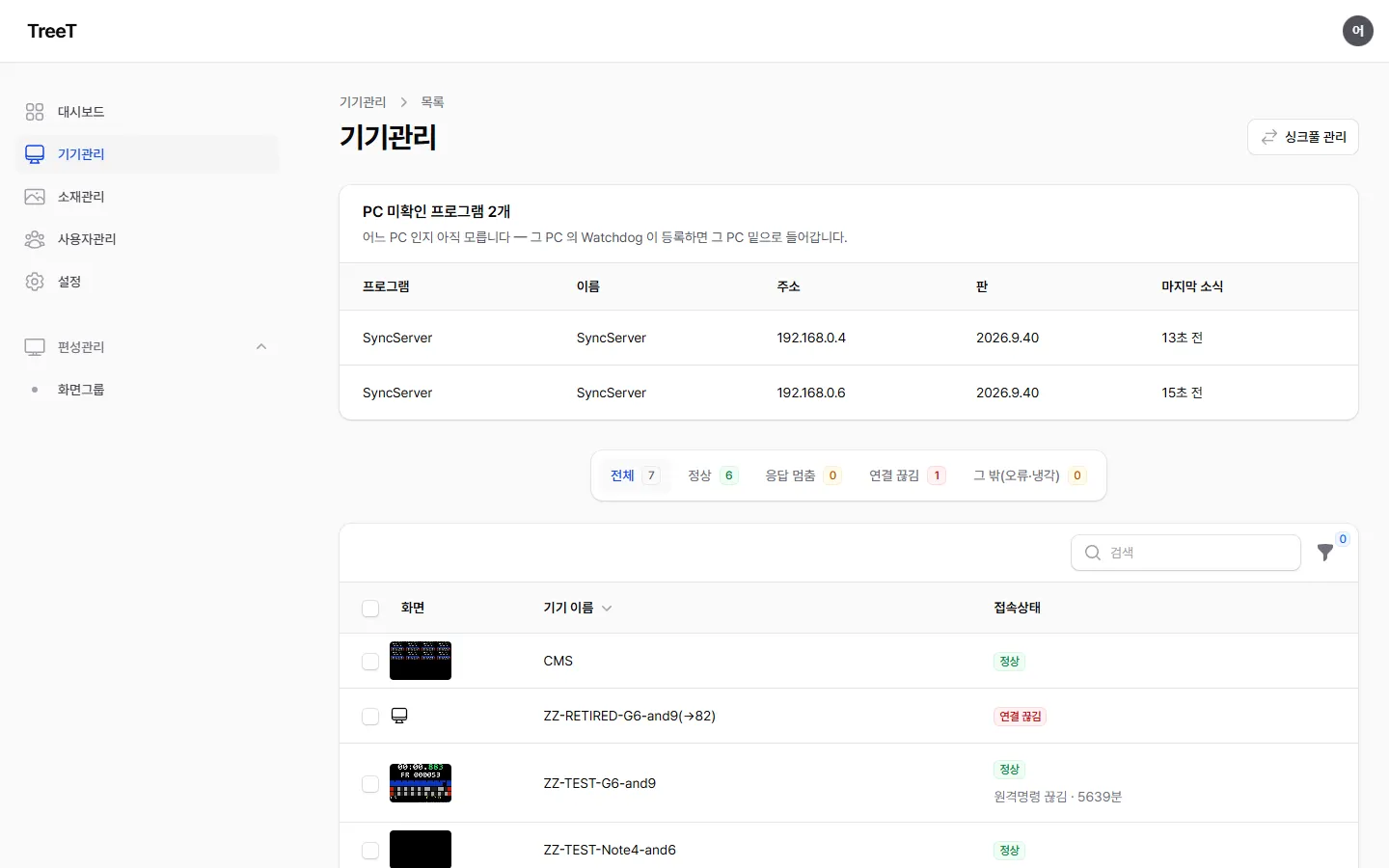
Status Meaning What to do OK The device is answering the CMS check on time Nothing Not responding Its answers to the check have stopped, but the device is alive — its records arrived within 6 minutes, or the Watchdog on the same PC reported within 3 minutes that the player is running Power and network are alive, so it can be fixed remotely — [Restart viewer (Watchdog)] on the device page (Admin and above — same as the [응답 멈춤] remedy on the dashboard) 🟠 Playback issue Answers arrive on time (within 45 seconds), but within the last 10 minutes a signal came that the screen is not moving forward — the slot video watch (자리 영상이 N초 동안 안 나아갔습니다, “the slot video did not advance for N seconds”) · 화면 정지 되살림 (screen freeze recovery) · Android 멈춤 되살림(앱 재시작 · 기기 재부팅) (freeze recovery — app restart · device reboot) Power and network are fine — look at the content · codec · sync settings. Once it recovers it returns to OK after 10 minutes Disconnected No answers, no records, no word from the Watchdog Check power · network on site first The device list has separate Not responding and Playback issue tabs above it.
Remote commands (MQTT) — shown as one line in the status on the device page. When it is down, the device list also shows Remote commands down · N min under the connection state.
Shown Meaning Connected Commands such as play · stop · volume reach the device right away Disconnected The device cannot connect to the remote-command server. After more than 5 minutes it appears under Needs attention now on the dashboard as Remote commands down Turned off (settings) Remote commands are turned off in the device settings — not an alert Not supported on this device Not an alert Not reported That device’s player version does not send this value yet — it appears once the player is updated The time down is counted from when the CMS first saw that state — the alert is not delayed even if the device clock is wrong.
Clock offset (vs CMS) — shown as one line in the status on the device page: how many ms the device clock is ahead (+) or behind (−) the CMS clock, and Measured by the CMS at. If it is off by more than 1 second it warns “Off by more than 1 second — check the device time sync (remote settings, time sync)”. If the device has not sent its clock, it shows Not reported. 🔵 Today, what actually sets device clocks to the CMS is the watchdog program on Windows PCs — on the device page, open the Watchdog program tab → Time sync section and turn on Time sync (CMS) (off by default). Once on, it asks the CMS for the time every 10 seconds (change it with Sync interval (s)), measures every 10 minutes and resyncs on the spot if it is off by more than 1 second. Turning it off returns the original Windows settings. Turning it on also speeds up Windows’ correction rate (restored when turned off), so the clock comes within 50 ms in about 10 minutes and around 20 ms in about 20 minutes (measured: -575 → -21 ms). Time sync (CMS) under Sync settings in remote settings is the field for Android · Linux players. Android follows it — on Android 9 or later where TreeT is registered as the device administrator (Device Owner), the app asks the CMS for the time and sets the clock itself (within tens of ms · every 10 seconds for our own server such as the CMS, every 64 seconds for a public server, correcting when off by more than 20 ms). On Android 7 · 8, once permission is granted over USB at installation, the app only switches the time server to the CMS and Android does the correcting — once a day, and only when off by more than 5 seconds, so ±5 seconds is the limit. Without the permission it only measures and says so in the CMS log (
timesync). Devices with time sync off also log one line with the current clock state (such as automatic time on · default time server) each time the player starts, and warn if automatic time is left off. ⚠️ The device must reach the CMS time server (UDP 123) — on a network where the CMS name resolves to an outside address it may not. No Linux player version follows it yet. -
Device settings (기기 설정) — set the screen group the device belongs to and volume. Scale mode is not set here — the page only shows the value that device follows; it is set under Scale mode in Scheduling below. Change them with [Edit] on the Device settings group at the top of the device page’s TreeTview tab; to set the same value on several devices, select them in the list and use Device settings for all. → For the program versions a device receives, see below.
When you move a device to another screen group, a new deployment goes out automatically at that moment and the screen changes shortly.
-
Device history (기기 이력) — look up what happened on that device month by month and export it to Excel. Besides the playback history, program starts and exits, updates, and errors are recorded too.
- The CMS collects the playback history the devices send once a minute — a playback that just ended may not show up right away. Right after updating to that version, playback history that had piled up earlier is filled in over a few hours.
- When an unhandled error occurs in the player, it is recorded here — so you can see what happened without going to the site.
- If the same error repeats, it is recorded only once within a certain period.
- If errors occur very frequently, recording is reduced: when reduction starts, “억제를 시작합니다” (Starting suppression) is recorded, and when it ends, “억제 해제 — 그동안 N건을 보내지 않았습니다” (Suppression lifted — N entries were not sent in the meantime). 🔴 It has not gone quiet — recording was reduced, so if you see this line, check the device.
-
Remote settings (원격설정) — change the device’s (viewer’s) settings remotely from the CMS. They are on the device page’s TreeTview tab; edit each section (display settings · sync settings · extra features · updates · server connection · developer) in place with [Edit] in its header. When you save, the device picks up the new settings at its next check and applies them. Fields an operator has set are marked 운영자가 정한 값 (value set by the operator). 🔵 While editing, pressing [기본값으로] (Reset to default) next to an operator-set field removes that field from the operator values right away, without waiting for Save, and shows “기본값으로 되돌렸습니다 — 기기가 다음 확인 때 받습니다” (reset to default — the device picks it up at its next check). The device really goes back to the default too.
Does the screen go off and come back on? It depends on the value.
Value changed Screen Screen brightness (the only remote-setting value that applies in place — volume is set with the volume control and screen fill mode in the schedule, and neither turns the screen off) Stays on — changes in place Any other value (screen rotation included) Goes off once and comes back on — this is normal -
화면설정 (Display settings) — screen margins (top, bottom, left, right), full-screen mode, vertical sync (VSYNC), and 영상 재생 방식 (video playback mode) (shown on Android devices only)
🔵 Screen rotation (degrees) — choose 0 · 90 · 180 · 270 (other values are rejected). For sites where the operating system is landscape but the monitor stands upright. It rotates the whole scheduled screen (layout of slots · background · captions) at once. Changing it restarts the viewer once. Videos shot in portrait appear as uploaded regardless of this setting (Video encoding guide).
🔵 Window position and size (borderless window) are real screen pixels — Windows display scaling (125% · 150%) does not affect them. Entering position X,Y and size W×H places the window exactly at (X,Y)–(X+W,Y+H), so you can enter the coordinates of the area your LED controller captures as they are.
🔵 On Android devices, settings that have no effect are locked — full-screen mode, vertical sync, window position and size, cursor hiding and shortcut keys are not used by the Android viewer, so only the current value is shown and it cannot be changed. The reason appears next to the field (for example Android is always fullscreen — this setting does not apply). Saving does not change those fields.
Two rows that matter only for synchronized schedules — they appear for every device, but have no effect unless the schedule plays several screens in sync.
Row Default Meaning Hand over the screen at transitions On (recommended) When moving to the next video, hands over to another player to remove the black gap. If off, each transition shows black briefly and overlapping transition effects do not blend Open the next video early Off (in testing) Opens the next video 2.5 seconds before the current one ends. It is still being tested, so it is off by default Screen brightness (%) — set per device, from 0 to 100. Saving changes it right away without turning the screen off.
Device How it changes Android The app screen’s brightness changes right away Windows · Linux PC Changes the brightness of the connected external monitor. The monitor must accept DDC/CI — it does not work if DDC/CI is turned off in the monitor menu, if the signal goes through an HDMI switch or USB dock, or on a TV. After writing, the viewer reads the monitor back to confirm; if it does not match, that device’s local log (see Device page below) records “이 기기(모니터)에 적용되지 않았습니다” (not applied to this device (monitor)) — it tries again the next time you change the value If the field is locked, the reason is shown next to it — for “This device cannot change brightness — (reason)”, check the conditions above; for “This version does not report brightness”, update that device’s viewer and it becomes available.
-
싱크설정 (Sync settings) — settings used when playing several screens in step (whether to use sync, sync server address and port, sync master designation, sync interval, playback-adjustment interval, stabilization value, display delay compensation, display latency table, and time sync (CMS))
-
-
부가기능 (Extra features) — additional options per device
Viewer language — choose Korean · English · Japanese · Simplified Chinese. Choosing Follow the site default language at the top makes this device use 사이트 설정 → 현장 기본 언어 (site settings → site default language) on the Settings screen (see Site settings below).
-
업데이트 (Update) — sets how often the device checks for new content/schedules, and how it handles the files it receives.
Item What it sets 업데이트 서버 사용 (Use update server) · 서버 자동 탐색 (Auto-discover server) Whether this device receives updates from the CMS, and whether it looks up the server address on its own 확인 주기 (Check interval) · 콘텐츠 확인 주기 (Content check interval) · 편성 확인 주기 (Schedule check interval) How often (in milliseconds) it asks for each USB 업데이트 (USB update) When on, the device watches for a USB drive and receives content from it when one is plugged in (for closed-network sites) 덮어쓰기 (Overwrite) · 덮어쓰기 전 백업 (Back up before overwrite) Whether to overwrite a file that already exists under the same name, and whether to keep a copy before overwriting ⚠️ Don’t set the check interval too short — questions to the CMS pile up in proportion to the number of devices. Unless you have a reason to change it, leaving it as it is is safer.
In the device list you can see screenshot · name · role · status at a glance, and filter by updated · not updated. You can send the selected devices remote power on/off and restart commands.
Program versions — which version a device gets
Section titled “Program versions — which version a device gets”Several programs run on a device (player, sync, watchdog, etc.). Which version they receive is not set per device — every device follows the CMS’s single update mode (automatic · manual). In the device page’s own words: “The update mode (automatic · manual) is set in Settings › CMS update — every device follows it.”
| What | Where |
|---|---|
| Update mode (automatic · manual) | Settings › CMS update — the CMS and the programs follow it together |
| When a new version is installed | Outside the operating hours of that device’s screen group. For a group with no time outside operating hours, the update time in Settings › App updates |
| Installed version · version to receive, per device | The Program versions section of the device page’s Device settings tab (view only) |
| Installing now, without waiting for operating hours | [지금 설치] (Install now) on the device page |
🔵 The Settings › CMS update tab is visible only to the master account. If the update mode needs changing, or a new version needs approving on a manual site, let the TreeT contact know.
Automatic · manual
Section titled “Automatic · manual”| Update mode | Version the devices receive |
|---|---|
| Automatic | The latest version of that program (among versions that match this CMS) |
| Manual | The approved version. The screen says “New versions are downloaded and announced only. They are applied only when you press [Update now].” — pressing [지금 업데이트] (Update now) approves the latest version at that moment for the CMS and the programs all at once. Until it is pressed, devices stay on the currently approved version |
- A new version goes to one device first. Once that device is alive on the new version, the remaining devices receive it — the same for automatic and manual.
- On a manual site, while a new version is waiting for approval, Version to receive in the device page’s Program versions table shows
승인 대기 — 설정 › CMS 업데이트의 [지금 업데이트](Waiting for approval — [Update now] in Settings › CMS update).
When it installs — outside operating hours · update time
Section titled “When it installs — outside operating hours · update time”So that a playing screen is not cut off without warning, a version to receive is not installed right away. The rule is the same for automatic and manual.
| The device’s screen group | When the new version is installed |
|---|---|
| A group with operating hours | When that group’s operating hours end |
| A group with no time outside operating hours (24-hour operation, etc.) | Within 60 minutes from the update time in Settings › App updates (default 03:00) — it installs and restarts even during operation |
The Program update time section of Settings › App updates shows right now how many devices fall on each side and when they will install. The When the new version is installed line in the device page’s Program versions section also gives that device’s time. For example:
- “If there is a new version, it installs at the update time, today at 03:00 (group with no time outside operating hours · Settings › App updates 03:00)”
- “Within the update time now — if there is a new version, it installs at the next check”
Viewing on the device page — installed version · version to receive
Section titled “Viewing on the device page — installed version · version to receive”The Program versions section of the device page’s Device settings tab shows, for each program, “the installed version and the version this CMS will hand out”. It is view only.
| Column | What it shows |
|---|---|
| Installed version | The version the device reported. If there is no report yet, 보고 없음 — 설치 확인 전 (No report — installation not confirmed yet) |
| Version to receive | The version this CMS will hand out to that device. If it is the same as the installed version, it is marked like 2026.9.382 — 같음 (2026.9.382 — same). On a manual site waiting for approval, 승인 대기 — 설정 › CMS 업데이트의 [지금 업데이트] (Waiting for approval — [Update now] in Settings › CMS update) |
The status field in Basic information also shows it on one line — 받을 판: TreeTview 2026.9.382 / 설치: TreeTview 2026.9.382 (To receive: … / Installed: …).
If the two differ, · 다름 (· different) is appended.
The Programs on this PC section of the same tab lists the programs tied to the same PC (Watchdog · SyncServer, etc.) and their reported installed versions (view only).
[Install now] — right away, without waiting for operating hours
Section titled “[Install now] — right away, without waiting for operating hours”[지금 설치] (Install now) on the device page makes that device install right away, if it has a version to receive. When pressed, it asks: “If there is a version to receive, installation starts now (without waiting for operating hours). Playback may be briefly interrupted during installation.”
- It does not change the version to receive — what gets installed is the Version to receive above. If that is the same as the installed version, there is nothing to install.
- On a manual site, a version waiting for approval is not installed by [Install now] — it must first be approved with [지금 업데이트] (Update now).
- Each press is recorded in the Audit log.
Versions that don’t match this CMS — minimum version
Section titled “Versions that don’t match this CMS — minimum version”Minimum versions this CMS accepts in Settings › App updates lists the lowest version for each program. Versions below it can be uploaded, but are not handed out to devices.
- Devices already installed below it are collected under Version mismatch in the dashboard’s Needs attention. They clear once the device receives a new version — automatically at the next time a new version is installed if the site is automatic, or with [지금 설치] (Install now) if it is urgent. On a manual site, the version must first be approved with [지금 업데이트] (Update now).
- The minimum versions come with the CMS — updating the CMS changes them as well.
Rollback is for the whole CMS only
Section titled “Rollback is for the whole CMS only”There is no way to roll back just one device to a previous version. Devices do not go down to a lower version. If a new version has a problem, [직전 판으로 되돌리기] (Roll back to the previous version) in Settings › CMS update rolls the whole CMS back to the version just before (master account — let the TreeT contact know). Devices that already installed the new version stay as they are.
Uploaded versions — Settings › App updates
Section titled “Uploaded versions — Settings › App updates”The place to register and delete the versions (releases) themselves is the Settings → App updates tab. It is visible to Admin and above only (regular users do not see the tab at all). The Installed devices column in that table lists the devices that have that version installed. How registered versions go out to devices follows the update mode above — in the screen’s words, “the latest version if automatic, the version approved with [Update now] if manual.”
Uploading a new version — in Settings → App updates, open Upload app in the Uploaded apps section, fill in the fields and press Upload app. Installers are large, so upload them from a PC.
| Field | What to enter |
|---|---|
| Program | The program you are uploading (TreeTview · TreeTviewAndroid · SyncServer · Watchdog · MqttEdge) |
| Platform | win (.exe) for Windows, android (.apk) for Android |
| Version | The installer’s version, in the form 2026.9.167 |
| Installer | The installer file to upload |
| Promotion certificate (optional) | Both promotion.json and promotion.json.sig together — a site in operation needs these to accept the upload (below) |
The name shown in the list (such as Watchdog 2026.9.45) is added automatically. In these cases the upload is not added and the reason is shown:
when the platform and file type don’t match (for example, an .exe for android), or when the same file has already been uploaded with the same version.
A site in operation can upload promoted versions only
Section titled “A site in operation can upload promoted versions only”A manually uploaded installer is handled differently depending on whether the CMS is in operation (how to move into operation: Going into operation in CMS installation).
| This CMS is | The uploaded installer |
|---|---|
| Not yet in operation (development stage) | Is accepted — registered as a development version |
| In operation | Is accepted only if it is a promoted (stable) version. Otherwise it is refused with “승격 증명서가 있어야 받습니다” (a promotion certificate is required) |
If the certificate does not match (different version · different file · wrong signature), it is refused whether or not the CMS is in operation.
TreeT provides the certificate together with the version — pick both files together in the Promotion certificate (optional) field of Upload app. If it matches, “Uploaded — the promotion certificate matched, so it is a stable version” appears. In the list, versions that are not stable have a yellow badge next to the version name.
When installation fails — [앱설치실패] (App install failed)
Section titled “When installation fails — [앱설치실패] (App install failed)”After a new version is installed (or after you press [지금 설치] (Install now)), a device may report back something like this:
[앱설치실패]
2026.9.167설치본을 실행했는데 판이 그대로2026.9.150입니다 — 자동 재시도는 멈춥니다(F8 에서 직접 누르거나 CMS 가 새 판을 주면 다시 합니다) ([App install failed] Ran the2026.9.167installer, but the version is still2026.9.150— automatic retries stop here; press it directly at F8, or it tries again when the CMS hands out a new version)
Where to see it — it’s recorded as-is in the device history in Devices (the record of what that device has uploaded).
Only two things to look at:
| In that line | What it means |
|---|---|
판이 그대로 <옛 판> (version stays at <old version>) | This is the key part. It means the install was attempted but didn’t change anything |
| 자동 재시도는 멈춥니다 (automatic retries stop) | So waiting won’t help with the same version. The device itself is telling you it tries again if you press it at F8, or when the CMS hands out a new version |
⭐ It means only one thing — the installer was received and even ran, but the version still didn’t move up. It isn’t a download failure — the installation itself didn’t take — so pressing it again is likely to give the same result.
🔵 That’s why the device stops on its own. Retrying the same installer forever would interrupt playback every time it does — it stops on purpose, the device hasn’t forgotten.
| What to do | |
|---|---|
| Wait for a new version | The installer itself is the most common cause. When the program’s next version is uploaded and the device’s Version to receive changes, it tries again |
| F8 on site | If you can get to the device, you can press it directly on the player’s settings screen |
When installation is cut off midway — [앱설치중단] (App install interrupted)
Section titled “When installation is cut off midway — [앱설치중단] (App install interrupted)”A line like this may appear in the device history:
[앱설치중단]
2026.9.265을 받거나 푸는 도중 앱이 다시 켜졌습니다(설치본은 실행 전) — 다시 합니다(1/3) (The app restarted while downloading or unpacking 2026.9.265 — before the installer ran. Trying again (1/3).)
This is different from [앱설치실패] above — the app restarted before the installer even ran, while downloading or unpacking.
Common causes are a dropped network or an overheated device (e.g. a Raspberry Pi) recovering its frozen screen by itself.
| If the line ends with | What to do |
|---|---|
| 다시 합니다(1/3) · (2/3) (trying again) | Nothing. The device retries by itself up to three times |
| 3번째라 자동 재시도는 멈춥니다 (third time — automatic retry stops) | Check that device’s heat · power · storage. Then press it directly with F8 on site, or wait for a new version (same as the table above) |
The CMS finds new versions by itself — the update feed
Section titled “The CMS finds new versions by itself — the update feed”The CMS periodically checks an online list of new versions, and when there is a new one, downloads it and registers it in the app update list. The list fills in without anyone uploading a file by hand. Versions still in development (dev) carry a dev mark in the list.
🔵 How registered versions go out to devices follows the update mode — in the screen’s words, “Devices receive versions according to the mode (automatic · manual) of CMS update on this screen — the latest version if automatic, the version approved with [Update now] if manual.” The details are in Program versions.
Status appears in the Update feed section at the top of the Settings → App updates tab — the last check time, the list number it received, and what it registered most recently. The CMS checks by itself every 6 hours.
| If you see this line | Meaning |
|---|---|
OK · last checked … | The list was received and checked. If there’s nothing new, nothing is uploaded |
Off | This site doesn’t use the feed (closed network, etc.). Uploading by hand still works as before |
Partly failed · Failed | The internet is blocked or the list could not be verified. This does not affect any other CMS function |
When two people open the same device settings at once
Section titled “When two people open the same device settings at once”When you save device settings, remote settings or a companion program’s settings and someone else saved in between, you see “Not saved — someone else saved first”. It also says who — ”○○ saved first.” (the name shows only within the range of the audit log you can view, otherwise “Someone else saved first.”). Reopen to see the new values, or overwrite with [Overwrite with my values] (this is kept in the audit log). Once saved, the screen redraws with the new values right away.
Remote access (viewing and controlling a device’s screen)
Section titled “Remote access (viewing and controlling a device’s screen)”There are three buttons at the top of the device page. Only Admin and above can use them (as of CMS 2026.9.725).
| Button | What it does |
|---|---|
| [Remote view] | Only views that device’s screen in a new tab — the mouse and keyboard are not passed to the device. Use this by default. |
| [Open with control] | Lets you watch the screen and control it with the mouse and keyboard. You must enter the reason for opening it, and who opened it, when and why is kept in the audit log. If you turn on Connect with a separate VNC app, instead of opening a window it shows a one-time address, password and expiry time just once (once you close the window you cannot see them again). |
| [End remote access] | Closes the open connection — its password is changed again right away. |
A new password is made every time you press a button. When you press it, that PC’s Watchdog sets a one-time password (usually a few seconds to a minute — it waits as long as that PC’s heartbeat interval), and once it is set the window opens. The password expires by itself after 30 minutes. There is no shared password for people to remember.
Connection address — enter address[:port] in the Remote access field of the Edit basic information window at the top. For most devices, leave it empty (the IP reported by the device · 5900).
| Example input | Connection address | Port |
|---|---|---|
| (empty) | IP reported by the device | 5900 |
192.168.0.10 | 192.168.0.10 | 5900 |
192.168.0.10:5901 | 192.168.0.10 | 5901 |
- Do not enter a password in this field. From CMS
2026.9.726, a value with a password attached (address:port:password) is rejected instead of being saved, and any password entered earlier is deleted during the update. - The IP the device reported is the address the viewer sends with every report. A device that uses both wireless and wired networks (a Raspberry Pi, for example) can pick a different address in each program, so the IP on the device row and the address on the same PC’s node (Watchdog) row can differ — both are addresses of that PC. If remote access does not connect, try entering the other address in this field.
Auxiliary programs — programs that run alongside the player
Section titled “Auxiliary programs — programs that run alongside the player”These are not the player that shows the screen but programs that run alongside it — one that keeps playback on several screens in step, one that restarts programs that die, and one that relays device commands.
Where to see them — in Devices.
| Where | What you see |
|---|---|
| Programs on this PC on the device page’s Device settings tab | The Watchdog · sync server · MqttEdge tied to the same PC as that device, with their versions and last response |
| PC 미확인 프로그램 N개 (auxiliary programs not yet tied to a PC) above the Devices list | Programs not yet tied to any PC. Once that PC’s Watchdog registers, they move under that PC. If there are none, this line does not appear. Visible to Admin and above only; the same table also appears above the list in the new admin screens |
| The Side devices list in the admin screen | All of them in one table — not in the menu yet; you get there by clicking an auxiliary-program alert row on the dashboard |
The fields shown in these lists are:
| Field | What it means |
|---|---|
| Name · type | The name the program sent when it registered itself |
| Version (판) | The version currently installed on that machine. It is updated separately from the player |
| Address | Recorded by the CMS when the program registers again. If it’s empty, the program has never re-registered |
| Last report | How many minutes ago it reported that it was alive |
| Hardware · alerts | Shown in the auxiliary device list of the admin screen — CPU load · temperature · free memory, and active alerts (throttling · under-voltage · temperature). Stale values are marked “N minutes old”, and a missing temperature sensor shows “temperature unknown” |
Device page — local logs · Watchdog channel commands
Section titled “Device page — local logs · Watchdog channel commands”The device page (opens when you click a device row in the Devices list or on the dashboard) has two functions that go through that PC’s Watchdog — player restart and PC reboot cannot be used on a PC without a Watchdog (local logs work without a Watchdog, as below). Both (including the local logs table) are shown only to Admin and above — they are not on a regular user’s device page.
Fetch local logs
Section titled “Fetch local logs”Brings into the CMS the records that stay only on the device. This is usually what the person investigating a problem asks for.
- Press [Fetch local logs] in the header of the Local logs table at the very end of the device page’s TreeTview tab and choose the date · from · to.
- Turn on All programs on this PC to also get the records of other programs on the same PC (sync server · Watchdog) (programs not on that PC are skipped). When off, only the viewer three (viewer log · main log · status summary) are fetched.
- Results appear in that Local logs table — refreshed every 5 seconds while a request is waiting.
| Status | Meaning |
|---|---|
| Waiting for Watchdog to pick it up | Usually moves on within a minute |
| Picked up by Watchdog — uploading | The files attach shortly |
| Uploaded | Click a file to view it. If truncated is shown next to it, the file was over 256 KB and only the start came through — narrow the time range and fetch again. A very long line (over 2,000 characters) shows only its first 2,000 characters, marked (first 2000 of N characters) — the lines after it still come |
| Expired (not picked up within 10 minutes) | That PC’s Watchdog is off or cut off — check the Watchdog’s last response in Programs on this PC on that device’s device page |
🔵 It also works on devices without a Watchdog (Android · Raspberry Pi). On such devices the player picks up the request at its next check (within 10 seconds) and uploads it, and the result appears in the same Local logs table. What can be uploaded is narrowed per device — Android: the viewer log only; a PC player without a Watchdog: viewer log · main log. Even with All programs on this PC on, only those come (the status summary · Watchdog records come only from a PC with a Watchdog).
Restart viewer · Reboot PC — Watchdog channel
Section titled “Restart viewer · Reboot PC — Watchdog channel”These are [Restart viewer (Watchdog)] · [Reboot PC (Watchdog)] in the command menu. The usual [Restart] only reaches a viewer that answers the CMS check, so it does not reach a viewer that has stopped responding ([응답 멈춤] above). These two buttons are received and carried out by the Watchdog on the same PC, so they still reach it.
When you press one, the confirmation window also shows whether the channel is alive:
| Line in the confirmation window | Meaning |
|---|---|
| Channel: last heard from the Watchdog N s ago. | Normal. Once sent, it is picked up within a minute |
| ⚠️ Channel: last heard from the Watchdog N min ago — if it is gone, the command is dropped after 2 minutes. | The Watchdog is quiet. You can send it, but it may not arrive |
| No Watchdog is linked to this PC, so this cannot be sent. | This button cannot be used — restart it on site |
- Restart viewer — closes the viewer and starts it again. Playback stops briefly.
- Reboot PC — reboots the PC in 30 seconds. The screen goes dark meanwhile. ⚠️ If the CMS also runs on that PC (the player and the CMS virtual machine on one PC), the CMS goes down too — the admin console and control of other devices stop meanwhile. The confirmation window does not warn about this yet.
- A command that is not picked up within 2 minutes is dropped (so it does not run late at an unexpected moment).
- If you send Restart viewer to a PC with no player installed (a CMS server, etc.), it fails with 이 PC 에 뷰어가 없습니다 (there is no viewer on this PC).
- The result is recorded in the device history as
[명령 #number] 뷰어 재시작 — 했습니다: …(done) or… — 못 했습니다: (reason)(could not).
Screenshot · requesting a screenshot size
Section titled “Screenshot · requesting a screenshot size”The Screenshot section at the very top of the device page (above the tabs) shows the last screen image the device sent. Only images received in the last 10 minutes are shown; otherwise “No screenshot received in the last 10 minutes.” appears.
If the text is too small to read, press one of the size buttons in that section’s header once (Admin and above) — with no window, just the next image comes in that size.
| Button | When to use it |
|---|---|
| Small (thumbnail) | The usual size |
| 1280×720 · 1920×1080 | When you want it a little larger |
| Original size | When you need to read text or details on screen |
- The setting does not change — only the next image comes in that size; after that it goes back to normal.
- It usually arrives in about 20 seconds. If the device hasn’t picked up the request within 2 minutes, the request is dropped.
Status section — video decoder · possible duplicate · settings mismatch
Section titled “Status section — video decoder · possible duplicate · settings mismatch”| What you see | Meaning | What to do |
|---|---|---|
| Video decoder Max … · concurrent N | The largest video size the device can open and how many it can play at once (the concurrent count is based on 1920×1080). The dashboard’s video too large for device compares against this value | For reference only. Not reported means only the Android viewer reports this value |
| Possible duplicate +N badge | There are N more device rows using the same MAC. This happens when the same PC created a new identity and became two rows | Hover the badge to see the MAC, and tell the live row apart by its last report time. An administrator deletes the dead row |
| ⚠️ This device’s settings point to different places | Values that should move together (server address · command address, etc.) have drifted apart — the same judgement as the dashboard’s Settings mismatch | Make them point to the same place. Only the master account can change the server address family, so tell your TreeT contact |
Device history — monthly Excel · auto refresh
Section titled “Device history — monthly Excel · auto refresh”In the Device history at the very end of the device page’s TreeTview tab (logs of all programs on this PC — the last 31 days), Monthly Excel downloads that month’s playback history as an Excel file. You can choose from the current month and the two before it.
The device list re-reads itself every 30 seconds and the device page every 15 seconds (only when something has changed) — no need to refresh.
Sync pools
Section titled “Sync pools”A sync pool is a group of devices that play on the same beat. You handle it in three places in the admin screens.
① Putting a device into a pool — the “Device settings” group on the device page
Press [Edit] on the Device settings group at the top of the device page’s TreeTview tab and there is a Sync pool field. Each pool’s port · sync server is shown next to its name. If that pool’s sync server is not installed, it is refused with “그 싱크풀의 싱크서버가 설치돼 있지 않습니다 — 다른 풀을 고르거나 싱크풀 현황에서 서버를 옮기세요.” (that sync pool’s sync server is not installed — pick another pool or move the server in the sync pool overview).
- Once you pick a pool, the pool decides the sync server port. Pick the sync server address in the sync section of the remote settings — registered sync servers are suggested there, and the value is never filled in silently.
- To stop using a pool, pick (no pool — set directly).
- People without the Scheduling menu permission don’t get this field (they can’t see the pool list).
- Devices of a screen group whose transition differs from the pool’s can’t be put into the pool — it is refused with “Sync pool ’…’ uses the transition ’…’ — screen group ’…’ uses ’…’ …”. The same applies when moving a pooled device to another screen group, or attaching a device to a screen group. Set that screen group’s [Transition] to match the pool, then save again (see Operating hours · transition · history on the group screen below).
② Several devices at once — “Device settings for all” in the device list
Select several devices in the device list and press Device settings for all to save volume · sync pool with the same value on every selected device.
- Every field starts at Keep — those fields stay as they are on each device. Change only the fields you want.
- If you change the volume, a volume command is sent to the devices along with the save.
③ Creating and editing the pools themselves — that sync server’s “이 서버의 싱크풀” (this server’s sync pools) (Admin and above)
A pool belongs to the sync server that opens it. On the device page of the PC where that sync server is installed → SyncServer tab → 이 서버의 싱크풀, use [싱크풀 만들기] (Create sync pool) · [Edit] on a row · [Delete]. Ports only need to be unique within this server (leave it empty for a free number).
The Sync pool overview (싱크풀 현황) at the top of the device list is where you see every sync server’s pools at a glance (view only — clicking the server cell takes you to that server’s SyncServer tab). Only two things are done here:
- A pool whose sync server is gone (not installed) shows 서버 없음 (no server) in the server cell, and only [서버 옮기기] (Move server — to a currently installed sync server; refused if that server already has the same port) or [Delete] is possible. Deleting it returns the devices that used the pool to no pool (they were already not syncing).
| Field | Meaning |
|---|---|
| Name · Port | Leave them empty and the server picks them when you create a pool (the lowest free port on that sync server) |
| Sync server | The sync server that opens this pool (the server the pool was created on) |
| Reference screen group | The sync server aligns the pool to this group’s schedule order. With (none) the sync server does not drive this pool |
| Devices | The devices currently in this pool |
| Hyper-V | Whether Hyper-V is On · Off · Unknown on each PC in the pool. Yellow if any PC has it on, red if on and off are mixed — below the cell you see the expected difference (about 13–14 ms) and an instruction to measure it with a camera and enter it as display delay compensation — for why, see the monitor/PC paragraph of the display delay compensation box under Sync settings in Devices above. Devices without Hyper-V, such as Android and Raspberry Pi, show Unknown |
- Edit changes the pool, not a device — every device using that pool follows.
- Delete is locked while devices use the pool (“Cannot delete — used by: (device names)”). Move those devices to another pool or take them out first.
- When you bind several screen groups into one pool, match the item count and lengths to the reference screen group — if they differ, a schedule structure warning appears in the list (the same story as “Putting several screen groups in one sync pool” in the Sync settings tab above).
- When you change the reference screen group, if other screen groups in the pool use a different transition from the new reference, saving is refused with “There are N screen groups (…) whose transition differs from the reference group’s (’…’) …”. Tick Align every transition to the reference group and save again — those groups take the reference screen group’s value and are redelivered right away. Sync license — each sync server needs a quota to accept screens
How many screens can be kept in step together (concurrent sync clients) is set by this CMS’s license, and that total is handed out as a quota to each sync server. A sync server accepts only as many screens as its quota — with a quota of 0 it accepts none, and that pool’s sync does not run.
- See the total · allocated · remaining in 동시 싱크 클라이언트 N · 배분 N · 남음 N (concurrent sync clients N · allocated N · remaining N) under Settings → License, and in 이 서버 몫 N대 · 싱크 라이선스 총량 N대 · 배분 N대 · 남음 N대 (this server’s quota · sync license total · allocated · remaining) at the end of the 이 서버의 싱크풀 description on the SyncServer tab.
- Once a sync server receives its quota it stores it on that PC, so it keeps running for 7 days even if the CMS is briefly out of reach.
- 🔴 The unit is devices — a device with several screens (a 2-split layout, for example) counts as 1 (owner decision, 2026-10-14).
- ⚠️ If you see 배분이 총량을 넘었습니다(라이선스가 줄었다) (allocation exceeds the total — the license was reduced), only what is left is handed out in server-number order — reduce the quotas.
④ Sync noise ledger — did synchronized devices jitter more than usual?
Below the Sync pool overview is the Sync noise ledger. Devices that use sync upload one measurement line every 5 minutes; the ledger compares the lines from the last 48 hours with each device’s own usual value (baseline — the median) and shows only the 5-minute windows that stray. Devices are not compared with each other, and devices that sent no measurements in that time (such as switched-off devices) are not shown.
| Column | Meaning |
|---|---|
| Windows | Number of 5-minute windows compared, and the time of the last measurement (last MM-DD HH:MM) |
| One-frame skips | How many times the screen skipped a frame, and roughly how often — counted, not alerted (not counted on devices whose usual jitter is half a frame or more) |
| Baseline | ① clock jitter ② start spread ③ tail (e95−e50) — the faint second number, as in 5/77, is the largest offset (emax) ④ browser stage height (jitter) — in ms. ④ shows the height and the jitter together, like 31 (jitter 1) — when PCs of the same spec are a frame apart, it shows in the height. On Android ④ shows Phase not visible (Android); devices with approximate values mixed in (currently the Raspberry Pi) show approx. |
| Strayed windows | Their number. Press “Show N strayed windows” to open the times and reasons below the table. None if there are none |
- 🔵 ⑥ One extra frame — right under a device row, in warning colour, you see something like “⑥ One extra frame 10-12 08:00 – 10-12 11:00 (3 h) · stage is +17ms above the floor of 30ms — looks like it came in on a restart (notice only)”. It marks hours when that device’s screen stage sat 0.75 frame or more above its usual floor — the screen came out one frame later for hours, usually starting at a restart and lasting until the next one. It is a notice only — not a fault; if devices look about one frame apart, check this line first.
- The ledger measures nothing new — it only rereads the measurement lines devices already upload. If no device uses sync, it says so.
- It is about whether the jitter before the picture is unusual, not how far screens drift apart — if strayed windows grow, check that device’s network · load · settings first.
Pairing a new device — devices waiting for a certificate
Section titled “Pairing a new device — devices waiting for a certificate”A newly installed device needs a certificate to talk to the CMS securely. The certificate is issued only after an administrator approves it — approving means typing the six-digit number shown on the device into the CMS. Only someone in front of that machine (or who can read its log) can know the number, so the number itself proves “this machine is ours”.
When — only three times. Routine certificate renewal is automatic, so there’s nothing for a person to do.
- When you first install a device
- When the certificate expired because automatic renewal was missed (network problems, etc.)
- When the site certificate (CA) was changed and that device, being on an older version, could not move over to the new CA (a replacement proceeds in stages, and devices on a version that supports it move over on their own, without pairing)
Where — when a device is waiting for approval, a N device(s) waiting for a certificate table appears above the Devices list (Admin and above only · no table when nothing is waiting).
| Column | Meaning |
|---|---|
| Fingerprint | The machine’s hardware fingerprint — shown because the number alone doesn’t tell you which machine it is |
| Name · From | The name the device gave itself, and the address the request came from |
| Time left | What’s left of the request’s validity (10 minutes) |
| Wrong tries | How many times a wrong number has been entered |
- Check the six digits shown on that machine’s screen. On a Windows PC, Watchdog shows a verification-code window on top of the screen (the time left is shown with it, and once it expires you request a new one with [다시 받기] (Get a new one) in that window). On Linux or a machine without a screen, read the number printed in the Watchdog log.
- Confirm it is the same machine by fingerprint · name · from, press Approve, and type the six digits exactly.
- When “Approved — the device will pick up its certificate shortly” appears, you’re done. The table re-reads every 20 seconds and the row disappears.
Requests that ended without approval are shown too — requests that expired or were rejected within 24 hours stay listed as 짝짓기가 끝나지 않은 기기 N대 — 신청이 승인 없이 끝났습니다 (N devices not paired — the request ended without approval). The row reads ”○○:○○ 에 만료 — 그 PC 에서 다시 신청해야 합니다(감시자 창의 [다시 받기])” (expired at ○○:○○ — request again on that PC ([다시 받기] in the Watchdog window)) or “거절됨 — 그 PC 에서 다시 신청해야 합니다” (rejected — request again on that PC), and the Approve · Reject buttons are only on waiting requests. So if “I went to approve it and the row isn’t there”, look at these rows first — once that PC requests again, it shows up in the table above with a new number.
🔵 Each program is approved separately — a PC’s Watchdog and player each make their own request, so you approve twice (the program is shown under the name). Each has its own number.
Scheduling (편성관리)
Section titled “Scheduling (편성관리)”Build the schedule for each screen group. A layout divides the screen into canvases; on each canvas you add slides in order and set the duration, period and hours.
| Screen | What is there |
|---|---|
| Screen group list | For each group: devices (responding) · people in charge · last publish · Delivered (n / total — devices that received the latest schedule; hover the cell to see the names of those that have not) · Unassigned devices below |
| Group screen | Header buttons [Edit schedule] · [Operating hours] · [Transition] · [Schedule history (Excel)] · [Rename] · [Delete] (some only with the right grade) · device table · schedule table |
Creating screen groups and adding or removing their devices are shown only to Admin and above.
- [New screen group] — at the top of the screen group list. Give it a name to create it. The first publish goes to devices only after you save a schedule once — until then the added devices show the default (single-split) screen. Conversely, saving a schedule with everything removed still publishes: the device keeps the layout and fills the empty slots with the background.
- [Add devices] — at the top of the device table on the group screen. “Pick from unassigned devices. Added devices receive this group’s schedule.” — a device in a sync pool can be added only if this group’s transition matches the pool’s (see Screen groups in a sync pool share one transition across the pool below).
- [Remove] — on a row of the device table. “The device moves to Unassigned devices and stops receiving this group’s schedule.” — it removes only that group’s devices.
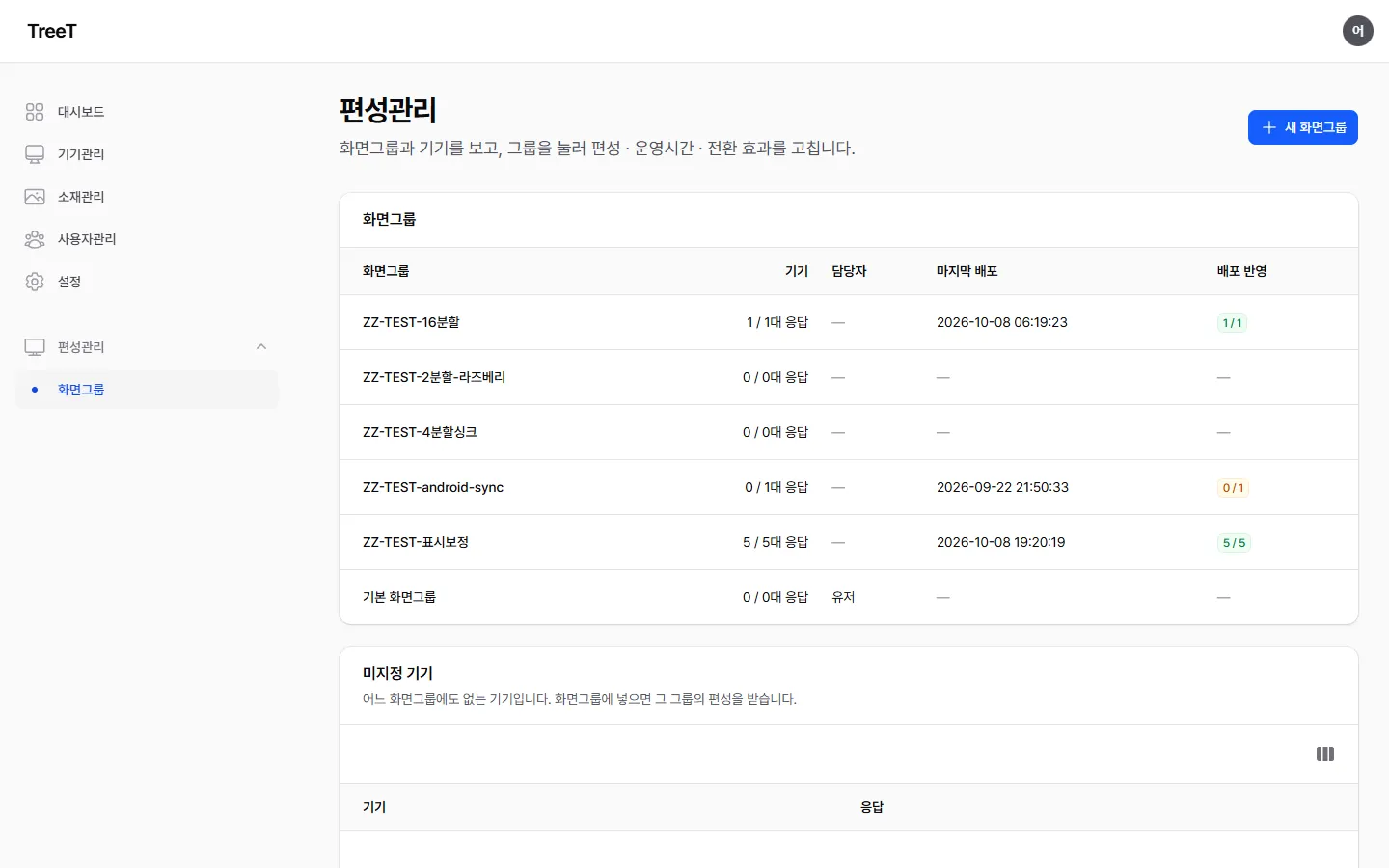
New schedule editor — [Edit schedule]
Section titled “New schedule editor — [Edit schedule]”Open a screen group in Scheduling and there is [Edit schedule] at the top (shown only to people who can edit that group). It lets you edit and save the schedule on this screen.
| Field | What it sets |
|---|---|
| Tabs | One tab per canvas of the layout; the tab shows the Canvas name (Canvas 1 · Canvas 2 … when empty). To rename a tab, change the Canvas name in the layout and save |
| Slides | Played in order from the top. Add with [Add slide] and move with the arrows. Removing one asks for confirmation |
| Duration | h:m:s — e.g. 00:00:10 |
| Screen tabs | In a layout that stacks several screens in a canvas, the canvas tab gets Screen 1 · Screen 2 … tabs, and each tab has that screen’s own slides (timed schedules too). If nothing is stacked, there are no such tabs — just one slide list |
| Start/End date · Start/End time | Empty means no limit. Write times like 08:00 |
| Days off | The slide is not played on the checked days |
| Media (per device) | The first media is the default — All devices not assigned elsewhere play it. Add more with [Add per-device media] and pick Devices that play this media for each |
When you are done, press [Save and publish] at the bottom. The new schedule goes out to the group’s devices as soon as you save — saving is one press of this button.
- Slides open collapsed — the collapsed header shows the media’s thumbnail · name · duration; if there is per-device media, several thumbnails appear along with 기기별 소재 N개 (N per-device media). Click the header to expand it (the header stays when expanded), and use Collapse all · Expand all above the list to switch them all at once. The media picker shows thumbnails too.
- If there were slides on a screen number that the layout doesn’t have, the warning “없는 화면(층)에 넣어 둔 슬라이드 N개” (N slides placed on a screen (layer) that doesn’t exist) appears — they were never played anywhere, so they are not loaded into the editor, and they disappear when you save (playback stays as it is now).
- The first (default) media cannot be removed or moved. To change it, pick a different media in that field. From the second one on you can remove them; devices that played a removed media go back to the default.
- [Add per-device media] is shown even on a slide with a single media.
- Devices that play this media lists only this screen group’s devices.
- Picking media — type a name to search (videos · images). Regular users see only media they uploaded and media already in this group’s schedule.
- Duplicate slide — the duplicate button in a slide’s header adds one more with the same settings · same media right below it. The copy is created in the same collapsed/expanded state as the original, and the other slides stay as they are.
- Timed schedules — edit them under Timed schedules at the bottom of each canvas. They play instead of the regular schedule above, only during the set period and hours (emergency or event schedules). Add one with [Add timed schedule] and set Name · Type (Play once · Scheduled · Repeating) · dates · times · Repeat interval (only for repeating) · Slides for this period. Removing one also removes its slides (it asks first). 🔵 When timed schedules overlap, the one lower (later) in the list wins — put the timed schedule you want to take priority further down. 🔵 Leaving the time fields empty means all day — [All day] under the time fields clears both start and end, and [Until end of day] clears the end (slide times work the same way). ⚠️ The [All day] button in the operating-hours window instead fills in
00:00 ~ 24:00— same name and same result (all day), but the fields look different. - [Change layout] (header) — choosing a layout starts again with empty canvases, clearing the current schedule (slides · timed schedules). It reaches devices only when you save; leaving the screen before saving changes nothing. The current layout and canvas count are shown under the title as (Layout: … · N canvas(es)).
- Operating hours · holidays · transitions are edited not in the editor but with [Operating hours] · [Transition] in the group screen header — see Operating hours · transition · history on the group screen below.
Operating hours · transition · history on the group screen
Section titled “Operating hours · transition · history on the group screen”| Button | What it does |
|---|---|
| [Operating hours] | Choose the mode — Follow the site operating hours · No operating hours (always on) · This screen group’s own hours. With the last one, set On at · Off at · Days off · Holidays (specific dates) ([Add holiday]). Saving wakes sleeping devices within a minute to get the new schedule. Removing a holiday removes only this group’s holiday |
| [Transition] | The effect when the media changes. By default you can pick 없음 (None) · 크로스페이드 (Crossfade) · 슬라이드 (Slide) · 배경 거쳐 페이드 (Fade through background — the current media fades out, the background behind it shows briefly, then the next media fades in), and effects your administrator made by changing values such as duration or direction also appear in the list. If not set, the media changes instantly with no effect ((Default: none)). It reaches devices with the next schedule publish — there is no per-device setting |
| [Schedule history (Excel)] | Download this group’s schedule history for a chosen month as Excel (two months ago to this month) |
Regular users can also change operating hours · transitions for their own screen groups.
Playing different media on each device in the same screen group
Section titled “Playing different media on each device in the same screen group”Devices in one screen group usually play the same schedule. To play different media on each device within one slide — say, of two entrance devices, one plays video A and the other video B — stack several media on that slide and choose the devices for each.
- Press [Edit schedule] on the group screen.
- Under Media (per device) of that slide, press [Add per-device media] and choose the media.
- Choose the devices in Devices that play this media of the added media.
- Press [Save and publish]. Per-device schedules are created and sent out at this point.
When two people open the same schedule at once
Section titled “When two people open the same schedule at once”When you save, a notice Someone saved first may appear. This means another administrator had the same screen group’s schedule open and saved first. What you entered is still there. Choose one of two options in the notice.
| What you press | Result |
|---|---|
| [Overwrite with mine] | Overwrites with your content as is. The schedule saved by the other person is lost |
| Cancel | Closes the notice without saving. Refresh the page to see the schedule saved first (what you were typing is lost) |
Schedule saves, including overwrites, are recorded in the audit log — who saved and when.
Scale mode — screen group → screen → media
Section titled “Scale mode — screen group → screen → media”How media is fitted to the screen (or one cell of a split screen). It is set in three places, and the narrower setting wins (media → screen → screen group).
| Where to set | Place | If not set |
|---|---|---|
| Screen group | [Scale mode] in the header of the screen group page — every device in that group | Stretch to fill |
| Screen | The Scale mode field for each screen · screen background · overlay · canvas background in the Layout editor | Follow the screen group |
| Media | The Scale mode field on each slide in [Edit schedule] | Follow this screen |
Backgrounds and overlays that are not set separately also follow the screen → screen group value. The device page only shows the screen group value that device follows (it is not set on the device). After a change, the device switches at its next check (about a minute).
Schedule calendar — what plays when
Section titled “Schedule calendar — what plays when”Shows the schedule on a time axis. Use it to spot where period schedules overlap and get pushed back, times with nothing to play, and hours outside operating time. The calendar is in two places.
| Where | One row is |
|---|---|
| Menu Scheduling > Schedule calendar | One screen group — use [Filter groups] to keep only the groups you want |
| Schedule calendar at the bottom of a screen group page | One slot of that group (Screen 1 · Screen 2 …) — with an “actually on” row for each device below |
Colours — dark bar = period schedule · light bar = default schedule (same colour = same media set) · hatched = period schedule pushed back by an overlap · red hatching = nothing to play (“empty — black screen”) · grey = outside operating hours (off) · green = when the device was actually on. Switch views with [Day] · [Week] · [Month] · [List].
| What you click | What opens |
|---|---|
| A bar (default or period schedule) | [Edit schedule] for that screen group |
| [Preview] | Pick a time (and a screen group on the overall calendar) to open a “YYYY-MM-DD HH:MM preview” window — the media each slot plays at that moment. [Edit schedule] in the window takes you to that group’s schedule |
| A red-hatched (empty) bar | The preview for the time the cell starts (in week view, 3-hour cells) — pick an exact time with [Preview] |
| [Media lanes] (screen group page) | Pick a slot and the rows become one media item each for that slot — when each one plays. [Back to calendar] returns |
Content management (소재관리)
Section titled “Content management (소재관리)”Content management in the menu opens the Media library.
- It’s a table — preview · name · status (Converting · Conversion failed · File missing) · type · size · uploader · used in (screen groups using it) · upload date.
- The filters include Usage → Not used — media that no schedule uses, i.e. candidates you can delete. File missing in the summary above means the server has no file for that media — upload it again or delete it (if scheduled, that part stops).
- The Tags filter lists the tags currently attached to media with how many media use each (e.g. event (12)) — you pick them instead of typing. If you pick several, media with any one of them are shown. The search box above the choices narrows the tag names, and the text search in the search field (name · description · part of a tag) still works.
- To delete, tick rows and click [Delete selected] — a confirmation appears first, and the server refuses media that a schedule uses.
- [Upload] opens the Upload media window (see The upload window below). Clicking a row opens the media detail screen (see Media detail screen below).
Regular users use the same screen too — they can delete only content they uploaded, and Used in counts only their own screen groups.
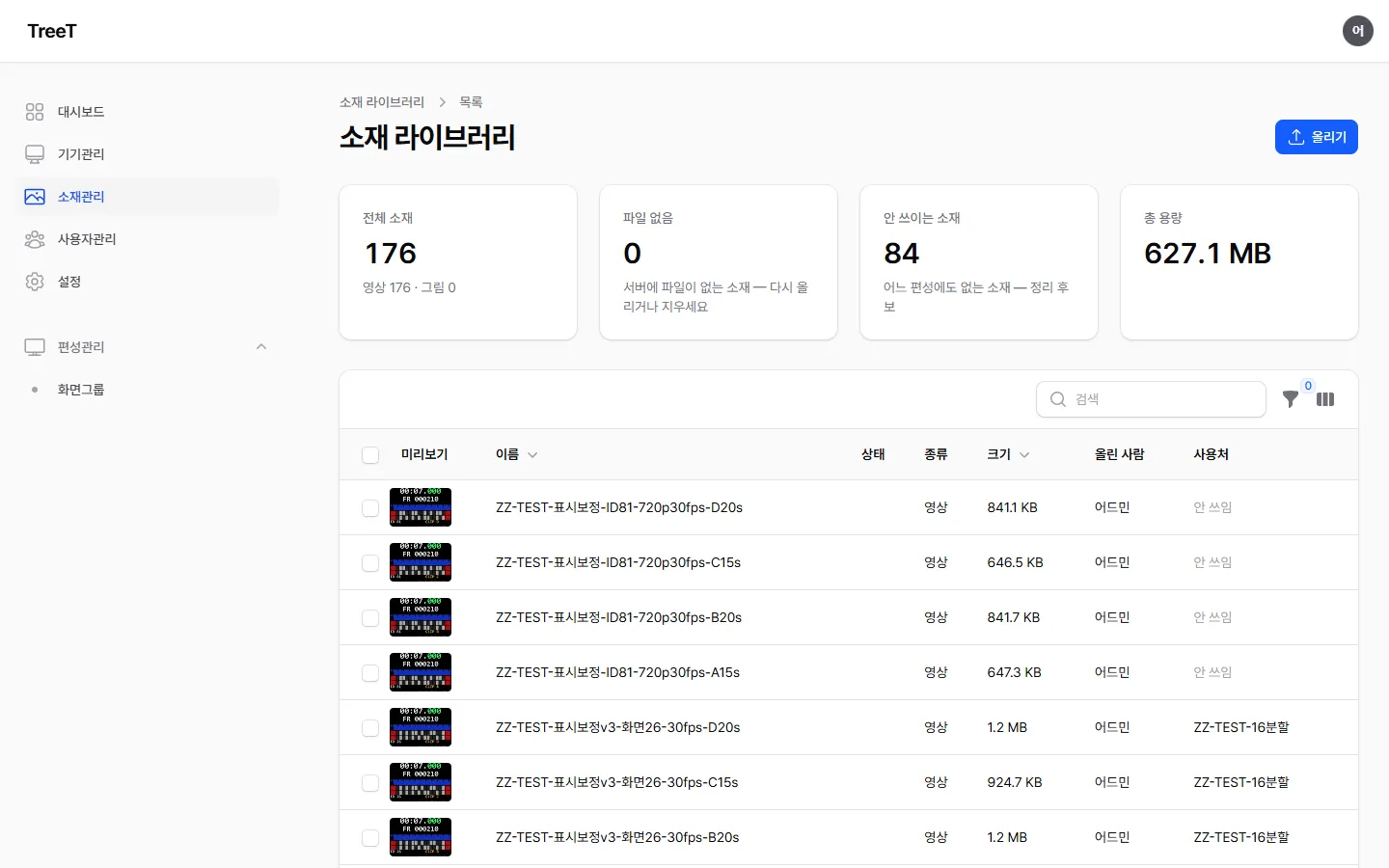
The upload window
Section titled “The upload window”- Click [Upload] in the header of the content list — the Upload media window opens.
- Drag files into the window or click to choose them — several at once is fine. Images are PNG · JPG · GIF (an animated GIF stays animated even after resizing), plus videos.
- Click [Start upload] — each file shows a bar and received / total size.
- When a file is in, it shows Registering (videos: measuring length, making thumbnails, starting conversion) → Registered. When everything is done, the list reloads by itself.
- Large videos work — they are sent in pieces. If the connection drops briefly, Connection lost — retrying appears and the piece is sent again.
- If you closed the window or the upload stopped, upload the same file again — Resuming from where it stopped appears and it does not start over.
- Videos reach devices only after conversion finishes — while the Status column shows Converting, it is not there yet. A red Conversion failed means the video could not be converted (the original is damaged or uses an unsupported codec) — use [Replace file] with another file, or delete it.
- If Upload failed — … appears, read the reason after it. If it ends with Reload the page and upload again, your login expired — reload, then upload the same file again and it continues.
Media detail screen
Section titled “Media detail screen”Clicking a media row in the list opens its detail screen. Regular users can open only media they uploaded (admins can open all).
| Area | What it shows |
|---|---|
| Preview | The media’s picture. If the file is missing or is not an image: “No preview (the file is missing or is not an image)“ |
| Details | Name · Description · Tags · Playback mode · Uploaded by · File · Type · File size · Size (width × height) · Duration · Uploaded · Status |
| Used in | Screen groups that use this media, and layouts that use it as a background · overlay (media used by a layout cannot be deleted; remove it from that layout and then you can). If none: “No screen group or layout uses this media.” — if screen groups you cannot see also use it: “Also used in N screen group(s) you cannot see — deleting or replacing the file affects those schedules too.” |
| Play count | Total plays per day (bars) · devices that played · average per device (lines) |
Header buttons:
- [Edit] — Name · Description · Tags · Playback mode (below). Add tags one at a time with a comma or Enter and each appears as a rounded box (pill); remove one with its ×. As you type, tags already in use are suggested — pick them so the same meaning doesn’t split into several tags. Find tagged media by picking tags in the list’s Tags filter. The name can be up to 100 characters.
- [Replace file] — keeps the media number · name · description · tags and changes only the file. It works like the upload window (drag and drop · pieces · resuming) and takes one file only. Videos reach devices only after conversion finishes. 🔴 If the media is in a schedule, publish that screen group again so devices fetch the new file.
- [Playback history Excel] — downloads, as Excel, play counts per day and per device for each screen group and screen over a period (1 week · 1 month · 3 months, default 3 months — up to today).
- [Download file] — downloads the original file. Regular users can download only media they uploaded (the same rule as opening the detail screen). If it cannot be downloaded (no such media · someone else’s media · still converting · file missing), a notice explains why and you return to this detail screen.
Playing just this item differently — Playback mode
Section titled “Playing just this item differently — Playback mode”On the media detail screen, use [Edit] to choose its Playback mode. It applies only to Android players (Windows and Linux players have only one way of drawing, so they ignore this value).
| Value chosen | How the item is played |
|---|---|
| Follow device setting (default) | Uses that device’s video playback mode setting as is |
| WebView — better on most devices | Plays only this item with WebView, regardless of the device setting |
| Native — better on low-end devices | Plays only this item natively, regardless of the device setting |
⚠️ A changed value takes effect from the next playback — a screen currently playing that item switches after one loop. The player is not restarted (unlike when you change a device setting).
User management (사용자관리)
Section titled “User management (사용자관리)”Add and manage the accounts that use the CMS. Along with basic information such as name, email, and department, you use checkboxes to set which screen groups and admin menus each account can access.
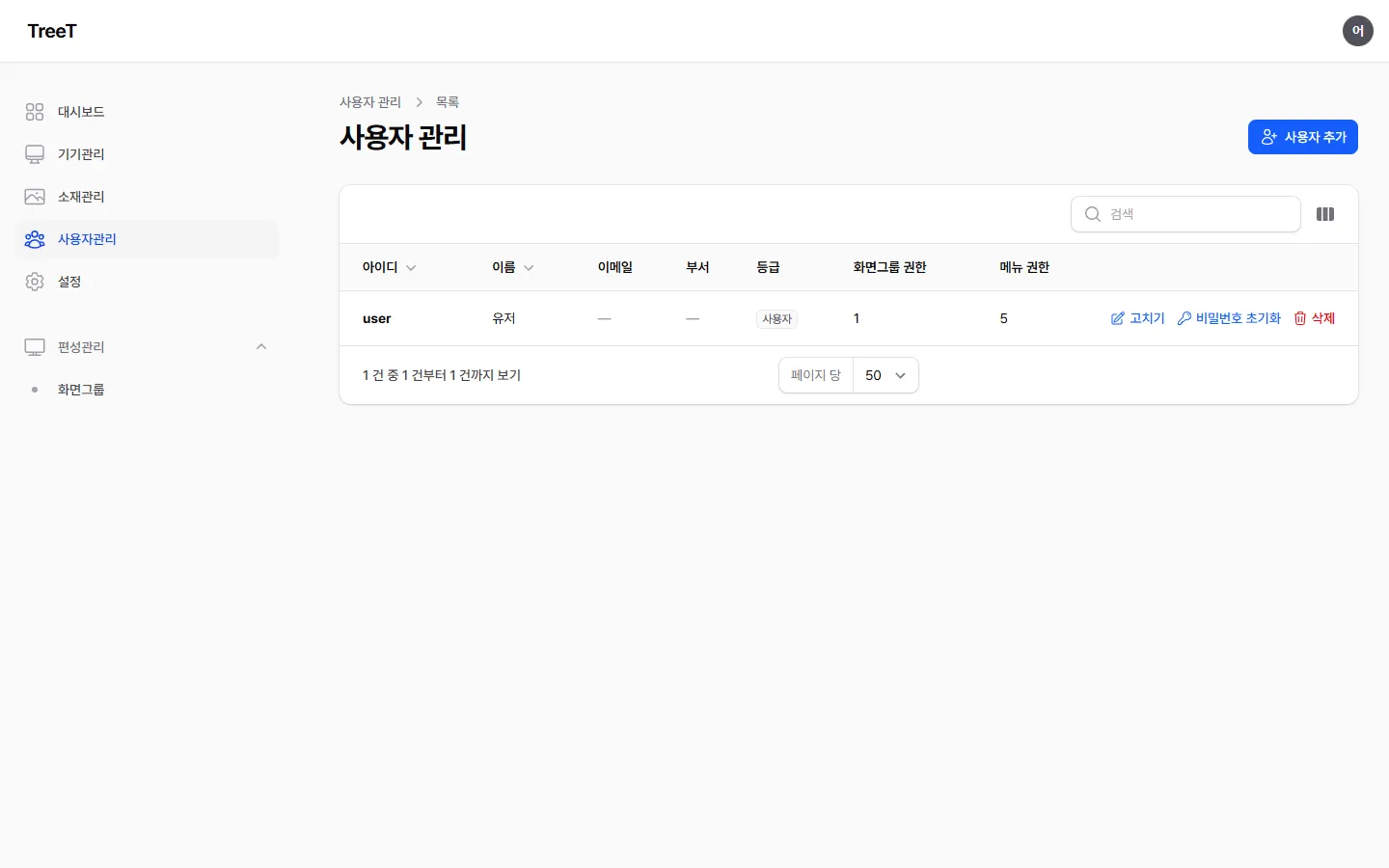
Who creates whom, and who sees whom
Section titled “Who creates whom, and who sees whom”Each account has a role, and what it can do and which lists it sees depend on that role.
| Role | Creating an account creates | What appears in the User management list |
|---|---|---|
| Top level (최상위) | An administrator account | Administrator accounts — regular users are not shown (they belong to that administrator) |
| Administrator (관리자) | A regular user account | The regular users they created — not their own account (change that in Settings) |
| Regular user (일반 사용자) | Cannot create accounts | Cannot use this screen |
🔵 What gets created is decided only by “who is creating it.” There is no field for choosing a role on the create screen — this prevents an administrator from creating another administrator.
⚠️ An administrator cannot see accounts created by other administrators. If the list looks empty, it may not be a permission problem but simply that no accounts have been created yet. If you need to see everything, log in with the top-level account.
Screen access — without a check, the screen won’t open at all
Section titled “Screen access — without a check, the screen won’t open at all”The menu checks set in User management decide not only whether a menu appears on the left but also whether the user can enter that screen. A screen without a check won’t open even if the address is typed in directly; the user is sent back to the dashboard. The dashboard and Settings are always on for everyone, so they are not in the checkbox list.
🔵 If you see “403 Forbidden” right after switching to another account — login sends you back to the last address you were on. The new account can’t open the screen the previous one was viewing (e.g. User management); it isn’t a fault. Type /admin in the address bar to open the dashboard.
Devices shown in Devices
Section titled “Devices shown in Devices”Regular users see only the devices in screen groups the administrator has allowed, and can control (play, stop, volume) only those devices. If no screen group is allowed, the list is empty.
Changing where a device belongs is also Admin and above only in Devices (even for devices you can see):
| Regular users can | Admin and above only |
|---|---|
| Play · stop · volume on visible devices | Delete a device |
| View and export the history of visible devices | Remove a device from a screen group · move it to another group |
| Open remote access · change the remote access address | |
| Fetch local logs · [Restart viewer (Watchdog)] · [Reboot PC (Watchdog)] |
⚠️ If you operated several devices at once and only some of them changed, devices that were not allowed were mixed in. The response and the audit log record the devices the command actually went to.
What regular users can do in Scheduling
Section titled “What regular users can do in Scheduling”In Scheduling, too, regular users see only the screen groups assigned to them. They edit the schedule of those groups the same way an administrator does — this is not a view-only level. Creating and deleting screen groups and assigning devices, however, is for administrators and above only.
| Can do | Cannot do |
|---|---|
| Edit schedules, operating hours, and transitions of assigned screen groups (except the transition of a group in a sync pool — see Screen groups in a sync pool share one transition across the pool above) | Create or delete screen groups |
| Add devices to or remove devices from a group | |
| Rename assigned screen groups ([Rename] on the group screen) | Edit screen groups not assigned to them |
The server rejects requests that bypass the screen by the same rule and records them in the audit log as 거부 (denied).
Audit log (감사기록)
Section titled “Audit log (감사기록)”The audit log (who did what, and when) is a Master-only screen — it isn’t in Admin or regular users’ menus, and it can’t be granted in User management. If you need to know who did something, ask your TreeT contact. Records are kept for 180 days.
Settings (설정)
Section titled “Settings (설정)”Press Settings in the left menu to open it. The screen is split into tabs, and each grade sees only the tabs it may use — tabs you have no permission for do not appear at all. Each tab shows the current values first; press Edit to open the fields.
| Tab | What it does | Who sees it |
|---|---|---|
| My profile | Change your name · email · department, and change your password | Every user |
| Organization | Organization name · copyright · avatar · logo | Admin and above |
| Operating hours | Site operating hours · operating days · holidays | Admin and above |
| App updates | Program update time · update feed status · minimum versions this CMS accepts · uploaded apps, uploading and deleting | Admin and above |
| Site | Site default language · alert mail · site CA fingerprint | Admin and above |
My profile — name · password
Section titled “My profile — name · password”Use Edit to change your name · email · department. The user ID cannot be changed. Change password asks for your current password and the new one (twice) — the new password must be at least 6 characters and mix letters and numbers.
Organization — name · copyright · logo
Section titled “Organization — name · copyright · logo”Change the organization name and copyright, and the avatar (256 × 256 recommended) and logo (330 × 86 recommended) used on screen. Images are jpg · png · gif. The copyright applies to every user in the same organization.
Operating hours — site hours · holidays
Section titled “Operating hours — site hours · holidays”| Field | Meaning |
|---|---|
| Start · End | Written like 09:00. Use 24:00 for the end of the day |
| Operating days | Which days from Monday to Sunday are on |
| Holidays | The whole site is off on these days. Pick a date with Add holiday and remove it with Remove holiday. Only today and later are shown |
Devices whose screen group has no hours of its own follow these hours. Screen group hours are edited in Scheduling. After you save, the CMS sends a wake signal to resting devices within a minute, so they pick up the new hours right away.
App updates — uploaded versions · feed
Section titled “App updates — uploaded versions · feed”| Section | What it shows |
|---|---|
| Program update time | The update time at which devices of screen groups with no time outside operating hours install new versions (default 03:00, within 60 minutes from then), and right now how many devices fall on each side and when they will install |
| Update feed | When the CMS last checked the list through which TreeT announces new versions (OK · Partly failed · Failed · Off), and the versions registered recently. The CMS checks by itself |
| Minimum versions this CMS accepts | Versions below this can be uploaded but are not handed out to devices |
| Uploaded apps | Version · platform · note · installed devices · upload date. Each line has Delete (the installer file is deleted too) |
How to upload a new version, and which version devices receive and when, is in Program versions above.
Site settings — site default language · alert mail
Section titled “Site settings — site default language · alert mail”This is the Site tab in Settings (visible to admin and above only).
| Field | Meaning |
|---|---|
| Site default language | The viewer language used by devices without their own language set. Not set means the viewer default (Korean). To set it per device, use Viewer language in Devices → that device → Remote settings |
| Alert mail | On · Off — 🔴 the default is Off. A site that has not turned it on sends to nobody |
| Recipients | Separate with commas, up to 10. Addresses in the wrong format are not saved. If empty, nothing is sent |
| Site CA fingerprint | When installing a viewer, compare it by eye with this fingerprint (Site deployment). If it cannot be read, “Could not read the fingerprint” appears — check the CMS certificate |
What gets sent — once alert mail is on and recipients are filled in, the CMS mails:
- Not responding — devices that have not answered the CMS check for more than 3 minutes while the PC is still alive. These are the same devices as “Not responding” in the dashboard’s what to look at now; judged every 5 minutes. The same device is mailed only once until it recovers.
- Devices disconnected during operating hours — collected into one mail every day at 02:05.
See also
Section titled “See also”- Key features — the full list of features the platform provides
- Site deployment — the order for setting up and connecting one site